Showing posts with label Mathematical Equation. Show all posts

Friday, April 13, 2018

How to write 'Mathematical Equation' in Microsoft Office--Exercise-1 (with caption and audio narration)

How to write 'Mathematical Equation' in Microsoft Office (Exercise-1)

Serial No. 296

How to write 'Mathematical Equation' in Microsoft Office--Exercise-1 (with caption and audio narration)

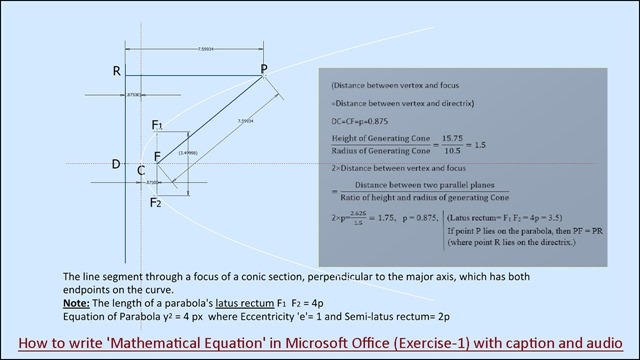
The sample equation file is selected from my model, named as ‘’Paraboloid (Autodesk Inventor)’.

The equation of Parabola is  is written by the 'Insert an Equation' command in Microsoft Word document.

 

download-Link


Click the following link to get the model file: - http://a360.co/1cG8C2n


Transcription of the Video

  1. This equation is created by the 'Insert an Equation' command in Microsoft Word document, at present position it is shown as an image file.
  2. Open a new Microsoft Word document file.
  3. Change the colour of the page for relaxing your eyes.
  4. Write the text as usual in the word document.
  5. Go to the Insert tab and activate the 'Insert New Equation' command.
  6. Next, go to the Fraction tab, select the 'Stacked fraction' option, then write the text.
  7. Type letter F, followed by digit 1 and subsequently type letter F, followed by digit 2 > select digit 1 and 2, afterwards apply the 'Subscript' button, the resultant typed letter will be F1 F2.
  8. Save the file with the name 'Equation of Paraboloid'.
  9. Return back to 'Part2' file and edit the sketch1, delete the image file and text.
  10. Go to the Insert tab and activate the 'Insert Image' command > open the image file.
  11. Adjust the image file in the design window.
  12. Finish the sketch and save the part file.

How to write 'Mathematical Equation' in Microsoft Office--Exercise-2 (with caption and audio narration)

How to write 'Mathematical Equation' in Microsoft Office (Exercise-2)

Serial No. 297

How to write 'Mathematical Equation' in Microsoft Office--Exercise-2 (with caption and audio narration).

The sample equation file is selected from my model, named as ‘Hyperboloid (Autodesk Inventor)’.

The equation of Hyperbola is  is written by the 'Insert an Equation' command in Microsoft Word document.

download-Link


Click the following link to get the model file: - http://a360.co/13fsoDh


Transcription of the Video

  1. This equation is created by the 'Insert an Equation' command in Microsoft Word document, at present position it is shown as an image file.
  2. Open a new Microsoft Word document file.
  3. Change the colour of the page for relaxing the eyes.
  4. Write the text as usual in the word document.
  5. Go to the Insert tab and activate the 'Insert New Equation' command.
  6. Next, go to the Fraction tab, select the 'Stacked fraction' option and then write the text.
  7. Go to the Bracket tab, choose the 'Single Bracket' option.
  8. Insert the stacked fraction option inside the single bracket and then write the digits in numerator and denominator.
  9. Save the file with the name 'Equation of Hyperbola'.
  10. Type letter O, subsequently type letter F followed by digit 1 > select digit 1, then apply the 'Subscript' button, the resultant typed letter will be OF1.
  11. Choose a square root option in the 'Radical' tab from the equation toolbar.
  12. Choose superscript option in the 'Script' tab from the equation toolbar.
  13. And write the text inside the square root.
  14. Select the desired digits and convert into the subscript text by using the 'Subscript' command.
  15. Close the word document and return back to 'Part2' file.
  16. Edit the Sketch1 from the browser bar and delete the image file.
  17. Activate the 'Insert Image' command and open the image file.
  18. Rotate the image in a proper position in the design window.
  19. Finish the sketch and save the part file.

How to write 'Mathematical Equation' in Microsoft Office--Exercise-3 (with caption and audio narration)

How to write 'Mathematical Equation' in Microsoft Office (Exercise-3)

Serial No. 298

How to write 'Mathematical Equation' in Microsoft Office--Exercise-3 (with caption and audio narration).

The sample equation file is selected from my model, named as ‘Éllipsoid (Autodesk Inventor)’.


download-Link


Click the following link to get the model file: - http://a360.co/15Tmd2u


Transcription of the Video

  1. Open the 'Part2' file.
  2. This equation is created by the 'Insert an Equation' command in Microsoft Word document, at present position it is shown as an image file.
  3. Open a new Microsoft Word document file.
  4. Change the colour of the page to relax the eyes.
  5. Write the text as usual in the word document.
  6. Type letter C, subsequently type letter F followed by digit 1.
  7. In the same manner, type letter C, subsequently type letter F followed by digit 2 > select digit 1 & 2, then apply the 'Subscript' button, the resultant typed letter will be CF1 & CF2.
  8. Go to the Insert tab and activate the 'Insert New Equation' command.
  9. Next, choose square root option in the 'Radical' tab from the equation toolbar.
  10. Choose a superscript option in the 'Script' tab from the equation toolbar.
  11. And write the text inside the square root.
  12. Save the file with the name 'Equation of Ellipse'.
  13. Select the numeric 1 & 2 and convert into the subscript text by using the 'Subscript' command.
  14. Choose staked fraction option in the 'Fraction' tab from the equation toolbar.
  15. Insert the superscript option inside the staked Fraction and then write the text.
  16. Close the word document and return back to 'Part2' file.
  17. Edit the Sketch1 from the browser bar and delete the image file.
  18. Activate the 'Insert Image' command and place the newly edited image file.
  19. Set the position of the image in the design window.
  20. Finish the sketch and save the part file.