Showing posts with label Shell feature. Show all posts

Thursday, May 14, 2015

Autodesk Inventor Basic Tutorial || Revolve and Pattern

mhousing_1

(Tutorial Concept Curtsy – Default SolidWorks Software Help)

In this tutorial we would learn about the Revolve and Pattern Feature of Autodesk Inventor by developing a solid named ‘mhousing’. In creation process of this model we will start our work by creating some basic sketches utilising the sketch constrains and dimensions then use Revolve feature to develop a 3D solid. Later we will use an Extrude Feature and a Shell Feature to proceed ahead. Again a sketch profile will be created to apply an Extruded Cut operation to remove some material from the solid. Now we will use a Rectangular Pattern Tool and a Circular Pattern Tool to duplicate the cavity formed by our last Extruded Cut operation and to complete the model.

And after successfully completing the tutorial, all of you can watch more similar tutorials by us, to practice more and learn more…

Recommended Playlist of similar Videos by us….

https://www.youtube.com/playlist?list=PLb-IhKRMYSERYpB48aY-sZ10fN6CfXIL4

Note:--

We have given sufficient amount of pause over the tool tip and command prompt so that they can be read easily…must focus on them to learn and understand the software in detail.

Video Screen Shots


download-Link


Click the following link to get the model file: -http://bit.ly/2oNweF5

Thursday, December 25, 2014

Computer Mouse (SolidWorks 2014 Tutorial)

Computer Mouse


Serial No. 61

Computer Mouse (SolidWorks 2014 Tutorial)

In this part/assembly modelling tutorial of SolidWorks we will create a model named ‘Computer Mouse 'which is quite similar to Wacom Intuos 2 Mouse. The assembly of this model is created using four components. Following exploded view of the model shows it clearly.

Exploded View of Computer Mouse with SolidWorks

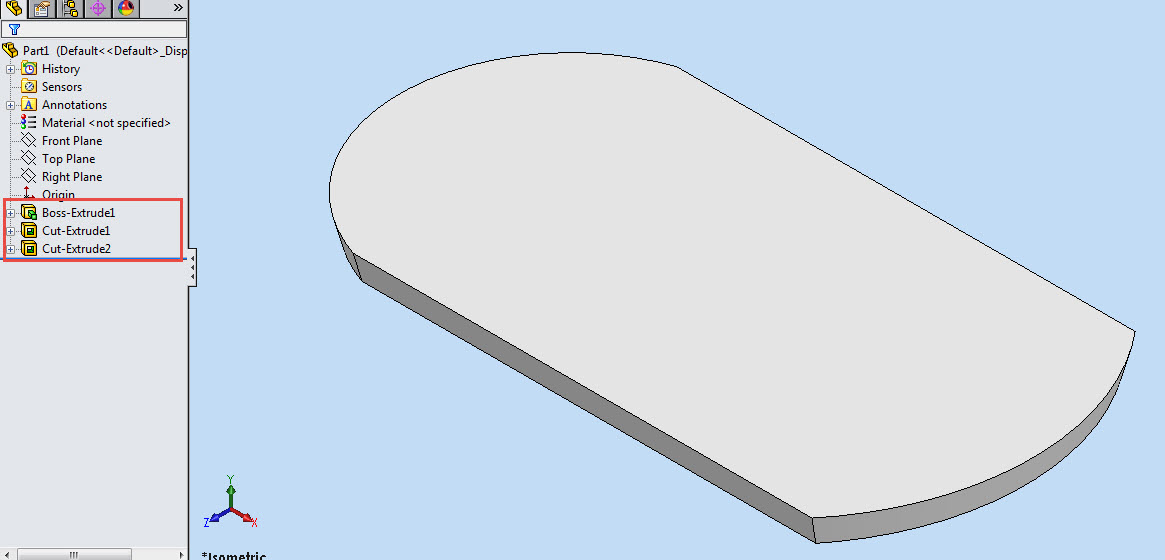
First part is quite simple after some basic sketching we will start our work using Extruded Boss/Base tool with a draft angle outward command. Then two extruded cut feature will be applied to complete the component.
First Component of Computer Mouse with SolidWorks
Then the first component will be placed in the assembly and the next component will be created in the context of first part. Later some sketches will be created on different planes and a Lofted Base/Boss feature will be used to form a sold. Then a Shell feature will be applied to hollow the part. Next some planes will be created, to be used as Trimming Surfaces in Split solid feature command. Then the model displayed will be trimmed according to the design requirement. This would convert the component in a multi body part.
This section of the tutorial displays the application of Split solid feature in a very professional manner . Later some Surfaces will also be created to be used as Trimming Surfaces in the aforesaid feature. In the end all the remaining bodies will be combined. Again some Extruded Cut feature will be applied to create holes for side buttons.

Second component of the assembly of computer mouse
From here a drastic change will occur in the modelling of this Computer Mouse. We will use configuration manager option of SolidWorks to create the next part to save time. Watch the tutorial to understand it more.

The remaining components are very common and I think there is no need to discuss them right now. Just watch everything in action the video is available below.


download-Link


Click the following link to get the model file: - http://bit.ly/2pFjUqE