Friday, September 28, 2018

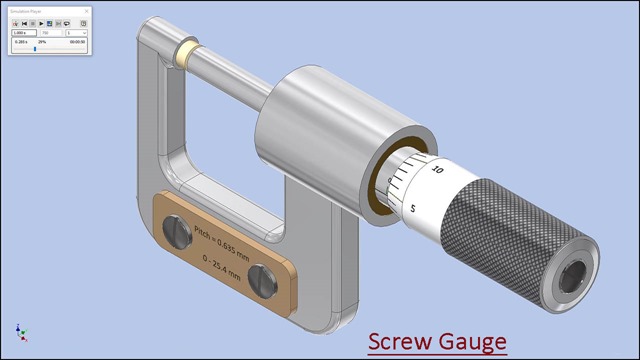
Modelling of 'Screw Gauge' with Dynamic Simulation (Volume-1) Autodesk Inventor 2018 Tutorial

Screw Gauge.jpg_1

Screw Gauge.jpg_2

Screw Gauge.jpg_3

Serial No. 305-A.

Modelling of 'Screw Gauge' with Dynamic Simulation (Volume-1) Autodesk Inventor 2018 Tutorial

(Rest of the model is completed in Volume-2)


Click the following link to get the model file: - http://bit.ly/2oWAced 


Procedure of reading of Screw Gauge

Total number of divisions imprinted on Circular scale (in one round) = 25

Total number of divisions imprinted on Linear scale = 40

Pitch of Linear scale = total length of Linear scale/total number of divisions imprinted on Linear scale
= 25.4mm/40 = 0.635mm

Least count of Circular scale = Pitch of Linear scale/total number of divisions imprinted on Circular scale
= 0.635mm/25 = 0.0254mm

Reading of Linear scale = Pitch of Linear scale x Number of divisions opened on Linear scale
= 0.635mm x 4 = 2.54mm

Reading of Circular scale = Least count of Circular scale x Number of divisions
ahead of central line of Linear scale
= 0.0254mm x 2 = 0.0508mm

Total Reading = Reading of Linear scale + Reading of Circular scale
= 2.54mm + 0.0508mm = 2.5908mm

Modelling of 'Screw Gauge' with Dynamic Simulation (Volume-2) Autodesk Inventor 2018 Tutorial

Screw Gauge.jpg_1

Screw Gauge.jpg_2

Screw Gauge.jpg_3

Serial No. 305-B.

Modelling of 'Screw Gauge' with Dynamic Simulation (Volume-2) Autodesk Inventor 2018 Tutorial(Starting of the model is designed in Volume-1)


Click the following link to get the model file: - http://bit.ly/2oWAced


Procedure of reading of Screw Gauge

Total number of divisions imprinted on Circular scale (in one round) = 25

Total number of divisions imprinted on Linear scale = 40

Pitch of Linear scale = total length of Linear scale/total number of divisions imprinted on Linear scale
= 25.4mm/40 = 0.635mm

Least count of Circular scale = Pitch of Linear scale/total number of divisions imprinted on Circular scale
= 0.635mm/25 = 0.0254mm

Reading of Linear scale = Pitch of Linear scale x Number of divisions opened on Linear scale
= 0.635mm x 4 = 2.54mm

Reading of Circular scale = Least count of Circular scale x Number of divisions
ahead of central line of Linear scale
= 0.0254mm x 2 = 0.0508mm

Total Reading = Reading of Linear scale + Reading of Circular scale
= 2.54mm + 0.0508mm = 2.5908mm

Sunday, September 16, 2018

Engine Air Filter || Siemens NX Tutorial

Engine Air Filter-Nx

In this Siemens NX 11 Tutorial, we will create a model of Engine Air Filter. By watching this video viewer will observe as well as learn various part modelling techniques of Siemens NX software.
....................................................................................
The model designing concept is taken from videos available on YouTube.
....................................................................................

download-Link 

Visit the following link to get the model file…

http://bit.ly/2pakHA8


....................................................................................

Visit the following link to watch more tutorial on Siemens NX by us
https://www.youtube.com/playlist?list=PLKWX3xUP3pPpUvtPuzEPoHimjTjpdbl_Q
.........................................................................

Hope all of you enjoyed the tutorial. If you find the video useful please like it and share it with your friends/colleagues and do not forget to subscribe me to get latest updates about my new uploads….
http://www.youtube.com/user/nisheethsorjm?sub_confirmation=1
....................................................................................................

Dear Viewers if you like our work and wanted to support us, to keep continuing the good work, then become a patron of ours at ‘Patreon’ site. Patreon is a simple way for you to contribute to the creator’s work every month/ every time they release their new work and get rewards in return. Please visit the following link to know all about our work and what we are offering as the reward to our patrons…

https://www.patreon.com/nisheethsri

Thursday, September 13, 2018

Engine Air Filter || Autodesk Inventor Tutorial

Engine Air Filter- Autodesk Inventor Tutorial

In this Inventor Tutorial, we will create a model of Engine Air Filter. While creating this model we will observe as well as learn various part modeling techniques of Autodesk Inventor software.

....................................................................................
The model designing concept is taken from videos available on YouTube.
....................................................................................

download-Link 

Visit the following link to get the model file…

http://bit.ly/2Wjci9z


...................................................

Visit the following link to watch the basic tutorial on Autodesk Inventor by us

https://www.youtube.com/playlist?list=PLb-IhKRMYSERYpB48aY-sZ10fN6CfXIL4
.........................................................................

To watch detailed tutorials on the same software visit the following link

https://www.youtube.com/playlist?list=PL74BDF7431ED13443
..........................................................................................

Hope all of you enjoyed the tutorial. If you find the video useful please like it and share it with your friends/colleagues and do not forget to subscribe us to get latest updates about our new uploads.

http://www.youtube.com/user/nisheethsorjm?sub_confirmation=1
....................................................................................................

Dear Viewers if you like our work and wanted to support us, to keep continuing the good work, then become a patron of ours at ‘Patreon’ site. Patreon is a simple way for you to contribute to the creator’s work every month/ every time they release their new work and get rewards in return. Please visit the following link to know all about our work and what we are offering as the reward to our patrons…

https://www.patreon.com/nisheethsri

Tuesday, September 11, 2018

Engine Exhaust Manifold || Creo Parametric Tutorial

Engine Exhaust Manifold-Creo (Time 0_00_07;03)

In this Creo Tutorial, we will create a model Engine Exhaust Manifold and it's mirror part. It is a part modelling tutorial so the viewer will be able to observe as well as learn various part modelling techniques of ‘Creo Parametric 4.0’ software. The application of Blend Tool is shown in quite a detail in this video so that viewers will be able to understand it in detail.
....................................................................................
The model designing concept is taken from videos available on YouTube.
....................................................................................

download-Link 

Visit the following link to get the model file…

http://bit.ly/31M54M9


...................................................

Visit the following link to watch basic tutorials on Creo Parametric by me

https://www.youtube.com/playlist?list=PLhloyISzAQksnPmtyZtncWCQJ3NpoX_SW
.........................................................................

To watch detailed tutorials on the same software visit the following link:--

https://www.youtube.com/playlist?list=PLKWX3xUP3pPorULULn8Q5BbDXqBjK_ZXD
..........................................................................................

Hope all of you enjoyed the tutorial. If you find the video useful please like it and share it with your friends/colleagues and do not forget to subscribe us to get latest updates about our new uploads.

http://www.youtube.com/user/nisheethsorjm?sub_confirmation=1
....................................................................................................

Dear Viewers if you like our work and wanted to support us, to keep continuing the good work, then become a patron of ours at ‘Patreon’ site. Patreon is a simple way for you to contribute to the creator’s work every month/ every time they release their new work and get rewards in return. Please visit the following link to know all about our work and what we are offering as a reward to our patrons…

https://www.patreon.com/nisheethsri

Sunday, September 9, 2018

Application of 3D Sketch in Solid Edge ST9 (with caption and audio narration)

Application of 3D Sketch tool in Solid Edge

Serial No. 106

Application of 3D Sketch in Solid Edge ST9 (with caption and audio narration)

This partial design has been used in my model 'Bulb Shade (Solid Edge Tutorial)'. I tried to emphasize regarding the use of 3D Arc by 3 Points tool, simultaneously creating surface with the help of 'Bound' command.


Transcription of the Video

  1. Create a new sketch on XY plane.
  2. Draw the two circles coincident from the part origin.
  3. Apply the desired dimension.
  4. Apply the symmetric constraint on these two lines and give the angular dimension.
  5. Create a 3 Point Arc, between the intersection point of line and circle.
  6. Save the part file.
  7. Create a point H1 on the circle and which lie on the end point of the vertical line.
  8. Create a new Plane 1/2 inch below from XY plane along Z axis.
  9. Create a new sketch on Plane4.
  10. Create a point on Plane4 which is the project of point H1.
  11. In Sketch panel, click on 3D Sketch tool.
  12. In 3D Draw panel, click on 3D Arc by 3 Points tool.
  13. Select two endpoints A & B are on the arc of outer circle, and lie on XY Plane. Next, select point H2 which lies on Plane4 which is the project of point H1. (A, B and H1 are coplanar points and lies on XY Plane).
  14. Exit from the 3D sketch environment.
  15. Go to the Surfacing tab, in the Surfaces panel click on Bounded tool.
  16. Select the 3D Arc and Edge Set of (Sketch1).
  17. Click on finish button to create the surface.

Thursday, September 6, 2018

Engine Exhaust Manifold|| Siemens NX Tutorial

Engine Exhaust Manifold--Siemens NX Tutorial

In this Siemens NX 11 Tutorial, we will create a model of Engine Exhaust Manifold and its mirror part by using Wave Linker Function of the software. By watching this video viewer will observe as well as learn various part modelling techniques of Siemens NX software. The application of Through Curve Mesh Tool has been displayed in the video in quite a detail that is the highlight of the video.
....................................................................................
The model designing concept is taken from videos available on YouTube.
....................................................................................

download-Link 

Visit the following link to get the model file…

http://bit.ly/2pntXka


....................................................................................

Visit the following link to watch more tutorial on Siemens NX by us

https://www.youtube.com/playlist?list=PLKWX3xUP3pPpUvtPuzEPoHimjTjpdbl_Q
.........................................................................

Hope all of you enjoyed the tutorial. If you find the video useful please like it and share it with your friends/colleagues and do not forget to subscribe me to get latest updates about my new uploads….

http://www.youtube.com/user/nisheethsorjm?sub_confirmation=1
....................................................................................................

Dear Viewers if you like our work and wanted to support us, to keep continuing the good work, then become a patron of ours at ‘Patreon’ site. Patreon is a simple way for you to contribute to the creator’s work every month/ every time they release their new work and get rewards in return. Please visit the following link to know all about our work and what we are offering as the reward to our patrons…

https://www.patreon.com/nisheethsri

Creating a custom template in Siemens NX 11 (with caption and audio narration)

Creating a custom template in Siemens NX

Serial No. 104

Creating a custom template in Siemens NX 11 (with caption and audio narration)


Transcription of the Video

  1. Open a 'Templates' folder in Siemens NX 11 Software on your computer.
  2. Copy the 'model-plain-1-inch-template' file.
  3. Paste the file in Document folder.
  4. Open this file in Siemens NX 11.
  5. A Trimetric view is set by default as a home view, so I have chosen 'Isometric View'.
  6. Activate the 'Drafting Preferences' command.
  7. Set 'Full-Size Fraction' button in the Numerical Display option.
  8. Choose 1/16 from the Fraction Denominator list.
  9. Select Period from the Decimal Delimiter list.
  10. Click OK and save the template file.
  11. Delete the main template file.
  12. Copy the new saved template file and paste in the 'Templates' folder.
  13. Open new inch part file and check the result.
  14. Dimensions are shown in fraction due to setting in template.

Comparative Study

Method to write dimension in fraction under NX software, first write real number of the digit, then place the symbol of '+', and finally write the rational number of the digit. (e.g., to write 2 and 1/2-----specify by 2+1/2).

But, if you want to write dimension in fraction under Autodesk Inventor software, open a new file in Inventor, first write the real number of the digit, then leave a space and finally write the rational number of the digit. (e.g., to write 2 and 1/2-----specify by 2 1/2).

Creating a custom template in Solid Works 2017 (with caption and audio narration)

Creating a custom template in Solid Edge ST9

Serial No. 222

Creating a custom template in Solid Works 2017 (with caption and audio narration)


Transcription of the Video

  1. Create the new part in SolidWorks 2017 software.
  2. 'Trimetric' view is selected by default, choose 'Isometric' view.
  3. Create a new sketch over front plane.
  4. Draw a sketch and apply the dimension.
  5. Activate the 'Edit Document Units' button.
  6. In the Unit system section, select the 'Custom' button.
  7. Change the decimal value up to 3 places (under Basic Units → Length).
  8. If you want to measure linear length in two different units (i.e. millimetres and inches), then go to the Dual Dimension Length and select decimal value up to 3 places.
  9. Activate the Smart Dimension tool and apply on 'Dual Dimension' option.
  10. Once again activate the 'Edit Document Units' button.
  11. Set the fraction value 32(under Basic Units → Length).
  12. Click OK.
  13. Save this file by using 'Save As' command.
  14. In the 'Save as type' section, choose 'Part Templates' option.
  15. Save the template file by giving it proper name, in a SolidWorks template folder.
  16. Reopen the previously created template file to watch the effect.

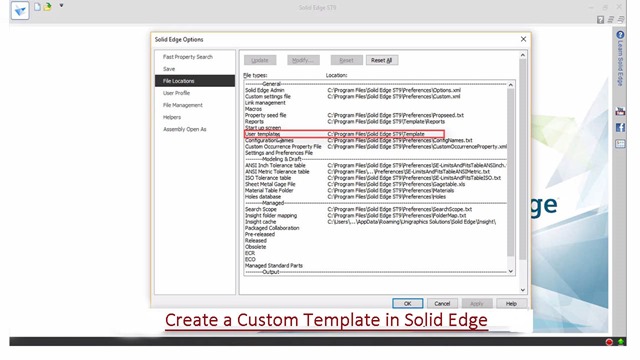
Creating a custom template in Solid Edge ST9 (with caption and audio narration)

Creating a custom template in Solid Edge ST9

Serial No. 105

Creating a custom template in Solid Edge ST9 (with caption and audio narration)


Transcription of the Video

  1. Create an ansi inch part file in Solid Edge ST9.
  2. 'Transition to Ordered' button should be activated, for creating an ordered modelling feature.
  3. Dimetric View is selected by default, but here I choose ISO View.
  4. Activate the 'Style' command.
  5. In the 'Style type' area choose Dimension.
  6. Click new button.
  7. Set the name as 'Fraction'.
  8. Under the Based on section select ANSI (in) option.
  9. Click the 'Units' tab and choose 1/16 inch in the 'Round-off' section list.
  10. Click OK and apply button.
  11. Activate the Solid Edge Options command.
  12. Change the Length and angular dimension value in Units tab.
  13. Previous settings is to be applied which have done earlier to create the new dimension style.
  14. Save the template file by giving it proper name, in a Solid Edge template folder.
  15. Once again, activate the Solid Edge Options command.
  16. Click File Locations button, select the 'User templates' option.
  17. Click Modify button and select my own created folder.
  18. Click OK.
  19. Open a new file in Solid Edge and check the result.
  20. Dimensions are shown in fraction due to selection of my previous setting.