Showing posts with label Face tool. Show all posts

Monday, March 30, 2015

Autodesk Inventor Basic Tutorial || Sheet Metal

Cover-2

(Tutorial Concept Curtsy – Default SolidWorks Software Help)

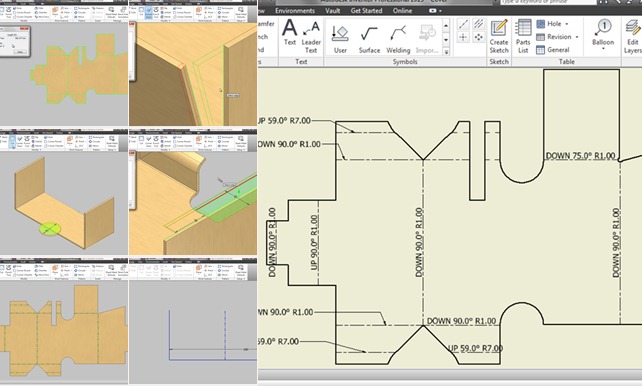
In this tutorial we will learn about the basic techniques related to Autodesk Inventor’s Sheet Metal functionality by modelling a Cover.

In creation process of this model we will start our work by creating some basic sketches utilising the constrains and dimensions.

After defining the Sheet Metal Defaults we will use Contour Flange, Cut, Mirror, Face Tool, Fold/Unfold, Flanges at different angle and Corner Seam Tool to complete the model.

Later we will generate the Flat Pattern of the model and examine the Extents of sheet along with Bend Order Annotation.

In the end we will create Drawing Sheet of the model where we will place Folded as well as Flat Pattern of the model along with Bend Notes.

Addition to this after successfully completing the tutorial, all of you can watch more videos on Sheet Metal by us to practice more and learn more…

Recommended Playlist of Sheet Metal Videos by us….

https://www.youtube.com/playlist?list=PLKWX3xUP3pPrzu8lASNE9Ol3n7nxlJLG1

Note:--
We have given sufficient amount of pause over the tool tip and command prompt in the video, so that they can be read easily…must focus on them to learn and understand the software in detail.

download-Link


Click the following link to get the model file: - http://bit.ly/33hkOII


Video Screen Shots
Sunday, April 13, 2014

Face tool and Flange tool-Autodesk Inventor 2013 (with caption and audio narration)

Face tool and Flange tool

Serial No. 203

Face tool and Flange tool-Autodesk Inventor 2013 (with caption and audio narration)

download-Link 


Click the following link to get the model file: - http://bit.ly/2mVWsV4


Transcription of Video

Face Tool is used to create sheet metal faces by utilizing a closed sketch profile. It is similar to extrude tool where height is automatically set to the thickness of the sheet. This tool is available on the Create panel of Sheet Metal Tab.

1. Open the Assembly file of ‘Chassis for Constant Voltage Transformer’.

2. In the Browser Bar double click the Part2 file to edit it.

3. A closed sketch profile is previously created in Sketch1 of this file.

4. Go on the ribbon, Create panel > Face tool.

5. The Face dialogue box is visible in the design window.

6. The rectangular profile is automatically selected in the design window.

7. Click the ‘Flip Offset’ button to change the direction of the extrusion.

8. And click OK to create sheet metal face.

Flange Tool is used to add a sheet metal planer face and a bend on an existing sheet metal edge. The depth and the angle of the flange can be specified. This tool is available on the Create panel of Sheet Metal Tab.

1. Rotate the model by using View Cube.

2. Go on the ribbon, Create panel > Flange tool.

3. The Flange dialogue box is visible in the design window.

4. In the Shape tab there are two options for creating a flange, first option is ‘Edge Select Mode’ and the other is ‘Loop Select Mode’.

5. Currently the Edge Select Mode button is active allowing you to select only one edge at a time.

6. Select four inside edges of the sheet one by one.

7. Delete the selections and try next option.

8. Click the ‘Loop Select Mode’ button, so you can select multiple edges at a time.

9. By default, ‘Inside of bend face’ option is selected as the ‘Bend Position’.

10. Change it to ‘Outside of base face’.

11. Fill the value in the Height Extents field.

12. Click OK to create new flange.

Friday, February 21, 2014

Tub-Rectangular through Sheet Metal-Autodesk Inventor 2013 (with caption and audio narration)

Tub-Rectangular through Sheet Metal

Serial No. 186

Tub-Rectangular through Sheet Metal-Autodesk Inventor 2013 (with caption and audio narration)

In this  video we will create a rectangular tub using sheet metal features (Face tool and Flange tool).


download-Link 


Click the following link to get the model file: - http://bit.ly/2ofTr23


 Transcription of Video

  1. Create a new Sheet Metal (in).ipt part file.
  2. Go on the ribbon > Setup panel > click Sheet Metal Defaults icon.
  3. The Sheet Metal Defaults dialogue box will be opened in the graphics window.
  4. Uncheck the ‘Use Thickness from Rule’ option to specify the thickness value 1/16 inch manually.
  5. Create a new sketch on the XY Plane.
  6. Draw a rectangle of dimension 32 ¼ inch x 27 inch with the help of ‘Three Point Centre Rectangle’ tool.
  7. Exit from the sketching environment.
  8. Activate the ‘Face’ tool from the marking menu.
  9. The sketch profile will be automatically selected.
  10. Click OK to apply face feature.
  11. Save the file with the name 'Tub (Rectangular)'.
  12. Change the colour of the model to ‘Flaked Reflective – Beige’.
  13. Activate the ‘Flange’ tool from the marking menu.
  14. On the Shape tab, click the ‘Loop Select Mode’ and click the bottom edge of the part.
  15. A preview of flange is visible in the graphics window.
  16. Click the Flip Direction button in the Height Extents field.
  17. And set the height extents value to 6 3/16 inch.
  18. Click OK to create the new flanges.
  19. Activate the ‘Flange’ tool once again.
  20. And select the four outer edges of the part.
  21. Fill the value 1 1/16 inch in the height extents field.
  22. Switch to the Corner tab, ‘Apply Auto-Mitering’ option is checked by default.
  23. Uncheck the Auto Mitering option to see the effect.
  24. Click OK to create the new flanges.
  25. Go on the ribbon > Flat Pattern panel > click Create Flat Pattern icon to generate the flat pattern of the model.
  26. Double-click the ‘Folded Model icon at the top of the Model browser to return to the folded model.

Friday, January 21, 2011

Sheet Metal Video Tutorial (Top Cover of Stabilizer)Autodesk Inventor 2010


This model is created in Autodesk Inventor's sheet metal environment. Face tool, Flange tool and Cut tool etc. were used to create this model. Copy and paste feature command are also covered. Watch the video to understand the process of making.
 Top-Cover-of-Stabilizer-View-1Top-Cover-of-Stabilizer-View-2

Click the following link to get the model file: - http://bit.ly/2o7T8GN