Showing posts with label basic sketching. Show all posts

Saturday, August 6, 2016

SolidWorks Basic Tutorial || Surfaces (Sketching Part)


Blog-Icon

In this video we will show how to create the two sketch profiles displayed in a previous video named ‘SolidWorks Basic Tutorial || Surfaces’. This means starting new file and basic sketching topics are covered in this tutorial.

Note:-

The video has a little caption assistance, but I have given sufficient amount of pause over the tool and their tip, so that they can be read easily. In addition this, annotations are also applied over important places…. so please focus on them to understand what is being done and how….

..............................................................................
Transcription of Video
...............................................................................

  1. Start a new file with any part modelling template.
  2. The document units should be set to Metric.
  3. Create a sketch over Top Plane.
  4. Draw the sketch utilizing the 2D sketching tools as displayed…..
  5. Activate Circular Pattern Command.
  6. First select 'Entities to Pattern', which in our case is an 'Arc' here.
  7. Next define number instance to be patterned and hit Ok.
  8. Now we are ‘Adding Relations’ from short cut menu.
  9. So currently sketch is ‘Fully Defined’, next convert these geometry into construction and exit from the sketching mode.
  10. Create a new plane parallel to Top Plane at an offset distance of 9 mm.
  11. On this new plane, create a circle or sketch segment, by converting sketch entity, drawn in previous sketch.
  12. Close the visibility of planes and save the file.

...................................................................

Next part of video can be watched at the following link… https://youtu.be/JfDB-zZUEzw

................................................………………

Visit the following link to watch basic tutorial on SolidWorks by us

https://www.youtube.com/playlist?list=PLb-IhKRMYSES3Zw3QHmQVqQ-rcFVzgYHy

.........................................................................

To watch more detailed tutorials on the same software visit the following link

https://www.youtube.com/playlist?list=PLKWX3xUP3pPo77gFCyy669sI76qJa5jKw

..........................................................................

Hope all of you will enjoyed the tutorial. If you find the video useful please like it and share it with your friends/colleagues and do not forget to subscribe us to get latest updates about our new uploads.

http://www.youtube.com/user/nisheethsorjm?sub_confirmation=1

Thursday, March 17, 2016

Vise || Creo Parametric Tutorial || (Volume-2)

Vise Assembly (1280x720)

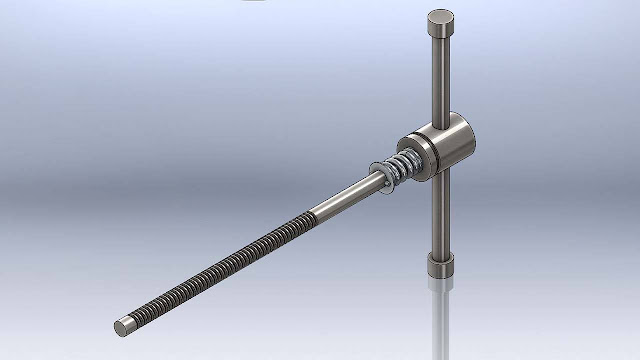
In this Creo Parametric assembly tutorial, we will create the model of a ‘Vise’. The tutorial covers basic sketching/part modelling concepts also.  


The Vise model has three sub-assemblies. The parts of the sub-assemblies are to be created individually not in context or with reference to other parts of the assembly. Some standard parts, images and spring are also used that should be obtained before starting the tutorial, afterwards, the components are placed into the assembly and by using proper constraint they are fitted according to the design. 


Volume 1 of the tutorial covers the creation of Subassembly-1 along with its components.

Subassembly-1 and its Components

Volume 2 of tutorial covers creation of Subassembly-2 & 3 along with final assembly.

Subassembly-2 and its ComponentsSubassembly-3 and its Components

download-Link


Get the model file by visiting the following link…

http://bit.ly/33MdN2y

Vise || Creo Parametric Tutorial || (Volume-1)

Vise Assembly (1280x720)

In this Creo Parametric assembly tutorial, we will create the model of a ‘Vise’. The tutorial covers basic sketching/part modelling concepts also.  


The Vise model has three sub-assemblies. The parts of the sub-assemblies are to be created individually not in context or with reference to other parts of the assembly. Some standard parts, images and spring are also used that should be obtained before starting the tutorial, afterwards, the components are placed into the assembly and by using proper constraint they are fitted according to the design. 


Volume 1 of the tutorial covers the creation of Subassembly-1 along with its components.

Subassembly-1 and its Components

Volume 2 of tutorial covers creation of Subassembly-2 & 3 along with final assembly.

Subassembly-2 and its ComponentsSubassembly-3 and its Components

download-Link


Get the model file by visiting the following link…

http://bit.ly/33MdN2y

Wednesday, September 2, 2015

SolidWorks Tutorial || Bolt and Nut Modeling

Bolt and Nut with captions (YouTube Icon)

In this SolidWorks tutorials we are going to demonstrate the modeling of a bolt and nut which covers detailed topics of the software along with basics of part with assembly modeling.
In part modeling topic we will learn about basic sketching, Extrude Boss/Base Feature, Extruded Cut, Revolved Cut, Chamfer, Helix and Spiral Curve, Swept Cut etc.
From Assembly modeling section we will learn about Beginning a new assembly with a previously created component, Inserting additional components, Move with Triad Command, Application of Mates etc.
Addition to this some detailed topics like creating Global Variables and using them over sketches and 3D Features, relating two features with equations, using previously created sketches in the current files etc.
So let’s start the tutorial and watch everything in action……..


Transcription

Creation of Bolt…

  1. Create a new part file.
  2. Start a new sketch over front plane.
  3. The units of the file must be set to IPS (inch, pound, second).
  4. Fractional and Decimal setting should be set as displayed.
  5. Create a circle over sketch origin.
  6. Now activate Equation tool.
  7. Create a Global Variable named ‘D’. All the other dimension now further will be related to this dimension.
  8. Apply the recently created Global Variable dimension over the Circle.
  9. Activate the Display Dimension Names.
  10. Convert the Circle into construction Geometry.
  11. Draw a 6 sided polygon coincident to sketch origin.
  12. Apply the dimension over it in relation to Global Variable.
  13. Display the relation between the sketches by activating ‘View Sketch Relation’ command.
  14. Apply a vertical relation between the sketch center point and edge point of polygon.
  15. The sketch is complete so save the file with the name Bolt.
  16. Now switch to the Feature Tab and activate Extrude Boss/Base Tool.
  17. The sketch has already been selected as profile for extrude.
  18. Fill the depth value and execute the command.
  19. Now change the model colour as per your wish.
  20. Now start a new sketch over Right Plane.
  21. Activate the Section View along the Right Plane to see the new sketch easily.
  22. Change the view orientation parallel to sketching plane.
  23. Activate the Intersection Curves command to take the project of the entire intersecting edges of previously created part.
  24. Convert the projected sketch into construction geometry.
  25. Draw the sketch as displayed along with dimensions.
  26. The sketch is complete so exit from the sketching mode.
  27. Activate the Revolved Cut tool.
  28. Select the sketch profile and define the axis of revolution.
  29. Click the green check mark to execute the command.
  30. Deactivate the Section View command by pressing its button once.
  31. Open the visibility of Sketch1 form the Design Tree.
  32. Start a new sketch over back face of the model.
  33. Take the project of previously drawn circle on Sketch1 into the current sketch using Convert Entities tool.
  34. Close the visibility of Sketch1.
  35. Draw the sketch as displayed.
  36. The sketch is complete so exit from the sketching mode.
  37. Activate Extruded Cut Tool.
  38. Select the sketch and place a check mark over, flip side to cut option.
  39. Fill the depth of cut and execute the command.
  40. Activate Extrude Boss/Base Tool and draw a sketch over back face of model along with dimensions.
  41. Exit the sketch and fill the depth of the extrude 2”.
  42. Hit enter key to execute the command.
  43. Select this edge of the model and activate Chamfer Tool.
  44. Fill the distance and angle values.
  45. Click green check mark to execute the command.
  46. Again create a new sketch over Right Plane as displayed.
  47. We will not create the thread profile here for the Bolt, instead we will past it from the file.
  48. Open the file named ‘UNF Screw External Thread Profile’
  49. Here you can see a sketch profile is drawn. The pitch of the profile is 1/20 or 0.05 inches which governs all the other dimensions by some relations.
  50. Copy the sketch present in the file and return back to the previous file.
  51. Now paste the thread profile here.
  52. Properly position the sketch using Rotate and Move Entities Tools.
  53. Exit from the sketching mode.
  54. Next draw a circle along with dimensions over back face of the model.
  55. Do not exit the sketch and switch to Features Table.
  56. Activate Helix and Spiral Tool.
  57. First reverse the direction of the curve.
  58. We will define the curve using Height and Pitch.
  59. Fill the height and pitch values as shown.
  60. To coincident the curve start point with the profile end point adjust the start angle.
  61. Click the green check mark to execute the command.
  62. Activate the Swept Cut Tool.
  63. First define the profile then the path and execute the command.
  64. The model is complete so save the file and close it.

Creation of Nut …

  1. Start a new part file.
  2. Start a new sketch over front plane.
  3. Set the units of file in the same way as we did in our first part.
  4. Create a circle coincident to the sketch origin.
  5. Create a Global Variable named ‘D’. All the other dimension now further will be related to this dimension.
  6. Apply the dimension over the circle.
  7. Convert the Circle into construction Geometry.
  8. Draw a 6 sided polygon coincident to sketch origin with dimensions.
  9. Apply sketch relation to fully define the sketch.
  10. The sketch is fully defined so exit from the sketching mode.
  11. Save the file with the name Nut.
  12. Activate Extrude Boss/Base Tool.
  13. Fill the depth value and execute the command.
  14. Now change the model colour as per your wish.
  15. Next start a new sketch over Right Plane.
  16. Activate the Section View along the Right Plane to see the new sketch easily.
  17. Change the view orientation parallel to sketching plane.
  18. Activate the Intersection and take the project of entire intersecting edges of the model.
  19. Convert the projected sketch into construction geometry.
  20. Draw the sketch as displayed along with dimensions.
  21. The sketch is complete so exit from the sketching mode.
  22. Activate the Revolved Cut tool.
  23. The sketch profile is automatic selected so define the axis of revolution and execute the command.
  24. Open the bolt file and draw a sketch over Right Plane as displayed.
  25. We are creating this sketch to get the dimensions for the hole that would be applied over our Nut.
  26. Here we got our required dimension so switch back to the Nut file.
  27. Activate Extruded Cut Tool.
  28. Draw a sketch over back face of the model with dimension we got previously.
  29. Exit the sketch and in Direction 1 filed select through all option.
  30. Execute the command to create hole.
  31. Close the file of the Bolt that is still open and return back.
  32. Activate Chamfer Tool and apply it over the following edge of the model with the displayed parameters.
  33. Start a new sketch over Right Plane.
  34. Take the project of the model edges and convert them into construction geometry.
  35. Again we will past the thread profile from the file ‘UNF Screw Internal Thread Profile’
  36. Copy the Sketch and return back to the Nut File.
  37. Paste the copied profile in the current sketch.
  38. Properly position the sketch using Move Entities Tools.
  39. The sketch is complete so exit from the sketching mode.
  40. Create a circle over back face of the model as displayed.
  41. Activate Helix and Spiral Tool.
  42. First select the circle.
  43. We will use Height and Pitch to define the curve.
  44. Fill the pitch value as displayed and execute the command.
  45. Select Helix/Spiral feature from the Design Tree and activate Equation Tool.
  46. Select the height dimension from the design window to add it in the Equation field it would be equal to the depth of Boss-Extrude feature.
  47. Apply and save all the changes.
  48. Activate Swept Cut tool.
  49. First select the profile then the path and execute the command.
  50. The file is complete so examine the threads and close the file that are open after saving.

Assembly of Bolt and Nut

  1. Create an assembly file.
  2. First place the Bot file in the assembly coincident to the origin.
  3. Save the file with the name Bolt and Nut.
  4. Open the visibility of Temporary Axis.
  5. Activate Insert Components Tool
  6. Browse the Nut file and place it.
  7. Select the Nut part and activate Move with Triad command from right click context menu.
  8. Rotate the model as displayed.
  9. Select the both axis of parts and activate Mate command.
  10. The coincident mate has been applied automatically so execute the command.
  11. Clear the screen by closing the visibility of Temporary axis and origin of file.
  12. The model is complete so save the file.

    download-Link

Get the finished model file by visiting the following link:--
http://bit.ly/2on80RA


Video Screenshot

The image showing the process of relating two feature with equation in Solidworks….

Friday, August 21, 2015

Creo Parametric Basic Tutorial || Sheet Metal

YouTube Icon-Cover_1

In this tutorial we will learn about the basic techniques related to ‘Sheet Metal’ functionality of ‘Creo Parametric’ by modelling a Cover.
In creation process of this model we will start our work by creating some basic sketches utilising the constrains and dimensions.
Next we will use Extrude Tool to create our first feature and use the same to remove some material form the model. Later we will use Flange Tool and take the help of ‘Mirror Tool’ to duplicate the Extrude Cut and Flange feature to the other side of the sheet. Then we will create another Flange that will also be mirrored to the other side as well. A Flat feature will be added next that will be bend along a line. Moving ahead we will unbend a previously created flange to remove some material form the model and then it would be bend back. Again a Flat feature at an angle of 75° will be created… Now we will create a corner between both the visible walls by using the Extend Tool along with a gap of 0.1 mm. So at the last we will create the Flat Pattern of the model. Next to place the flat pattern and solid model of the part in the drawing sheet we will use Family Table.
Next we will create a drawing file and put the Flat Pattern part in it along with Bend Lines… and export the drawing sheet to a PDF file…


Transcription of Video

  1. Start a new Sheet Metal Part file with the metric template and give it a name ‘Cover’.
  2. Select the Front Datum plane and create a new sketch on this plane.
  3. Draw the sketch using the line tool with the provided dimensions.
  4. Apply constrains time to time to full define the sketch.
  5. The sketch is complete so exit form sketching mode.
  6. Activate the Extrude Tool and specify the thickness of sheet along with extrude length.
  7. Change the material thickness direction and provide the bend radius.
  8. Click green checkmark to execute the command.
  9. Change the colour of the model as per your wish and save your work.
  10. Again activate the Extrude Tool to remove material form the sheet.
  11. This time activate internal sketcher to draw the sketch profile as displayed.
  12. First add some new references to create sketch.
  13. Click green checkmark to execute the command.
  14. Now activate the Flange Tool and select the user defined shape in the profile type option.
  15. Select these edges to specify on which edges new flanges will be created.
  16. Switch to Shape Tab and activate the internal sketcher to draw a shape for the flange.
  17. The sketch is complete so finish it and return back to the flange dialogue box…
  18. Set the Bend Relief type to Rectangular.
  19. Specify the Bend Radius which is by default inside of the thickness.
  20. In the Miter Cut details fill gap and offset values as displayed.
  21. Click green check mark to execute the command.
  22. Select Extrude and Flange Feature from the Model Tree and activate Mirror Tool.
  23. Select Front plane as mirroring plane and click OK.
  24. Now it is asking for new placement edges for the mirrored flanges so define it as shown.
  25. Click green checkmark to execute the command.
  26. Again we will create a new flange on the basis of user defined sketch…
  27. This time we will create the profile of the flange over the front plane.
  28. We do not need the flange, to go through all the way along the edge, so drag these nodes and specify the length from the front plane.
  29. All the other settings should be defined as done in the previous Flange creation.
  30. Now we will mirror this flange to the other side of the wall as done earlier.
  31. Activate the flat the Flat Tool.
  32. Fill the angle for the Flat and define the edge on which the feature is to be created.
  33. Define the length and width of the feature and here also, we do not need the feature to go all along the way, with edge so it should be changed by dragging the node.
  34. Click green check mark to execute the command.
  35. Activate Bend Tool.
  36. First define Bend surface from the Placement Tab.
  37. Draw a bend line by activating an internal sketcher.
  38. Fill the bend angle and side of the bend along with its radius.
  39. Click green check mark to execute the command.
  40. Activate Unbend Tool.
  41. Select Reference type as manual.
  42. Clear the Bend Geometries that are selected automatically and select only one bend.
  43. Click ok to execute the command.
  44. Now activate the Extrude Tool and cut the material from the unbended part.
  45. Ok now we will Bend Back this the flange…..
  46. Next we will create a Flat Feature at an angle of 75°.
  47. Hide the visibility of default Planes.
  48. Activate the Plane Tool and select the following face of the model to create a new plane at an offset distance of 0.1 mm.
  49. Repeat the same steps to create another plane.
  50. Press ALT key on your keyboard and select the following edge of the model.
  51. Activate Extend Tool and select Extend the wall to intersect the reference plane option.
  52. Next specify the reference plane and execute the command.
  53. In the same manner extend the other wall also…
  54. You can see a corner with a gap of 0.1 mm has been created between the two walls.
  55. The preview of flat pattern can be seen at this stage.
  56. Next we will actually create Flat Pattern of the model.
  57. From the Model Tree Setting open Tree Filters.
  58. In Tree Filters Items, turn on the display of Supressed Objects.
  59. From the Model Tree supress the Flat Pattern feature to bring back the folded part in front of us.
  60. Now activate the Family Table tool.
  61. Add the supressed Flat Pattern feature in the Family Table column.
  62. Insert another row where we put unsuppressed Flat Pattern feature which is defined by letter (Y).
  63. Next create a new drawing file.
  64. When select instance dialogue box appears select ‘The generic’ part to place sheet metal general part.
  65. Activate General View command and click anywhere on the screen to place the part.
  66. Orientation of the model is already set to default so now scale the size of model in the drawing sheet.
  67. Set the Display style of the model to Shaded with edges and click ok button.
  68. Unlock view movement and drag the view of the model to upper right part of the sheet.
  69. Press Drawing Models button and select Add Model from the Menu manger to place another instance of the model.
  70. In the Select Instance Dialogue Box click COVER_FLAT instance to place Flat Pattern of the model.
  71. Again repeat the same steps to place the second General View of the model.
  72. Only different setting this time is that we will place the Top view of the model, Display style be No Hidden, Tangent edges will be supressed and scale of the model will be 0.65 percent.
  73. We will remove some unnecessary dimensions.
  74. Click Model Annotations button and place bend lines in the sheet by placing the model datums and notes.
  75. Next we will clean some unnecessary lines and move the Bend Line notes to make it more descriptive.
  76. Our sheet is complete so we will save it and export it to a PDF file.

download-Link


Click the following link to get the model file: -http://bit.ly/2o9dejW

Wednesday, July 29, 2015

Creo Parametric Basic Tutorial || Revolve and Pattern

mhousing-YouTube Icon

In this tutorial, we will learn about the Revolve and Pattern Feature of Creo Parametric by developing a solid named ‘mhousing’.
Revolve Feature is used when we want to create a solid by revolving a closed sketch profile through a specified angle and along an axis.
Pattern Feature is used when we want to replicate a feature. This can be one or two-dimensional array of that feature.
In this tutorial addition to these tools, the general part modelling process of creating Basic Sketches, Shell Tool, Extrude Tool with cut operation etc. are also displayed.


Transcription of Video

  1. First we will define the Working Directory.
  2. Create a new part file utilizing the metric template and give it the name ‘mhousing’.
  3. Clear the screen by closing the visibility of Axis, Points, Spin centre, etc.
  4. Create a new sketch over ‘Front Datum Plane’.
  5. Orient the sketching plane parallel to the screen by clicking Sketch View icon.
  6. Activate the line tool and draw the sketch as displayed.
  7. Change the dimension values as displayed.
  8. Now draw a Rectangle.
  9. Convert these lines into construction geometry.
  10. Complete the sketch by adding some more lines.
  11. Apply the dimensions as displayed.
  12. Delete this automatic applied constrain to specify new dimension.
  13. Add a Centerline in the sketch.
  14. The sketch is complete so exit from the sketching mode.
  15. Activate the Revolve Tool.
  16. From the Placement Tab define the sketch.
  17. You can see the software has automatic selected Internal Centerline as Axis.
  18. Click green check mark to execute the command.
  19. Change the colour of the model as per your wish.
  20. Save the file.
  21. Activate Round Tool.
  22. Specify the radius for the ‘Round’.
  23. Select this edge of the model to apply the round.
  24. Activate the ‘Shell’ Tool.
  25. Specify the thickness of the model.
  26. Switch to Reference Tab and define the faces to be removed.
  27. Click green check mark to execute the command.
  28. Activate section along X direction.
  29. Now you can examine the internal view of the model.
  30. Deactivate the section view.
  31. Again create a new sketch over ‘Front Datum Plane’.
  32. Set the display of the model in ‘Hidden Line Display’.
  33. Draw the sketch as displayed.
  34. Activate the Extrude Tool.
  35. Select the sketch and activate remove material option.
  36. Click green check mark to execute the command.
  37. Select the Extrude Feature form the Model Tree and activate Pattern Tool.
  38. Select direction as type of the Pattern.
  39. Select Axis to define the direction reference.
  40. Fill the number of the members to be patterned.
  41. Enter the spacing between the patterned members.
  42. Click green check mark to execute the command.
  43. Select the previously created Pattern Feature from the Model Tree and again activate Pattern Tool.
  44. Select axis as type of the Pattern.
  45. Next define the axis.
  46. Number of the members to be patterned and angle between them has already filled so click the green check mark to execute the command.
  47. The model is complete so save the file and delete all the old version files that were saved on your hardware.

download-Link


Click the following link to get the model file: -http://bit.ly/2nkTKsn

Friday, July 17, 2015

Creo Parametric Basic Tutorial || Revolve and Sweep Feature

Creo Parametric Basic Tutorial -Revolve and Sweep Feature

In this tutorial, we would learn about the Revolve and Sweep Feature of Creo Parametric by developing a solid named ‘Candle Stick’.
Revolve Feature is used when we want to create a solid by revolving a closed sketch profile through a specified angle and along an axis.
Sweep Feature is used when we want to create a solid using a closed sketch profile and a path. First, the path or trajectory is created then the sketch profile.
In this tutorial addition to these tools general part modelling process of creating basic sketches, Extruded cut at an angle etc. are also displayed.


Transcription of Video

  1. Create a new part file utilizing the metric template and give it a name ‘Candle Stick’.
  2. Create a new sketch over ‘Front Datum Plane’.
  3. Clear the screen by closing the visibility of Datum Planes, Axis, Points, Spin centre, etc.
  4. Orient the sketching plane parallel to the screen by clicking Sketch View icon.
  5. Activate the line tool and draw the sketch as displayed.
  6. Change the dimension values as displayed.
  7. Again start creating sketch using the line and 3-Point/Tangent End tool.
  8. While sketch is being created the constraints are applied automatically.
  9. Apply the dimensions as displayed.
  10. The sketch is complete so exit from the sketching mode.
  11. Activate the Revolve Tool.
  12. In the placement Tab first define the sketch profile and then the Axis.
  13. Angle for the revolve is automatic filled 360°.
  14. Click green check mark to execute the command.
  15. Change the colour of the model as per your wish.
  16. Save the file.
  17. Again create a new sketch over ‘Front Datum Plane’.
  18. Draw the sketch as displayed.
  19. Activate the Sweep tool.
  20. Define the visible sketch as trajectory for the sweep.
  21. Click this icon to activate internal sketcher for creating the sweep cross section.
  22. Draw an ellipse at the end of trajectory and apply the dimensions as displayed.
  23. Click Ok to return to the Sweep tab.
  24. The preview of the feature is visible so click ok to execute the command.
  25. Create a sketch over top face of the model.
  26. Activate Extrude Command.
  27. Select remove material option.
  28. First select the sketch and then define the depth of the cut.
  29. Add a taper angle for the cut from the option tab.
  30. Click green check mark to execute the command.
  31. The model is complete so save the file and delete all the old version files that were saved on your hardware.

download-Link

Click the following link to get the model file: -http://bit.ly/2mvK1Pv

Creo Parametric Basic Tutorial || Blend (Loft) Feature

Hammer Head 1280x720

In this tutorial, we will learn about the Blend Tool of Creo Parametric by developing a solid named 'Hammer Head'.  This Tool is used when we want to create a solid by joining two or more closed profiles.
Another important tool which is used in the modelling of this part is Swept Blend. As we can understand by its name it is a combination of sweep and blend both features. In this feature, multiple closed profiles are joined using trajectory.
In addition to this general part modelling process of creating basic sketches, creating Planes etc. are also discussed.

Note:--
The video does not have audio assistance but I have given a sufficient amount of pause over the tool and their tip so that they can be read easily. In addition to this annotations are also applied over important places… so please focus on them to understand what is being done and how……..


download-Link


Click the following link to get the model file: -http://bit.ly/2n8TgFP

Thursday, October 9, 2014

Vise (Volume-1) SolidWorks 2014 Tutorial


Serial No. 24-A

Vise (Volume-1) SolidWorks 2014 Tutorial 

In this tutorial we will display the creation process of an assembly named 'Vise'.  It will be created by using part modelling /assembly modelling functionality of SolidWorks Software.
The Vise model has three sub-assemblies.  Each assembly is has modelled part as well as Tool Box components or standard parts. The parts are to be created individually not in context or with reference of other parts of the assembly, after wards they are placed into the assembly and by using assembly mates they are fitted according to the design.
So in this way viewers will be able to observe lot of basic sketching and application of different tools in part modelling along with assembly mates.

Exploded view of Sub-assembly-1 of Vise
Exploded view of Sub-assembly-2 of Vise
Exploded view of Sub-assembly-3 of Vise


The next part of the video can be watched on following link..

The animation of this model can be created by visiting the following link:--

If you want to get the newer version of this video, we have uploaded this video with audio narration only One Volume on our YouTube channel.  Please you can watch this video so that you can understand it easily.


Click the following link to get the model file: - http://bit.ly/2os7Fgk


....................................................................................
Visit the following link to watch the basic tutorial on SolidWorks by us
https://www.youtube.com/playlist?list=PLb-IhKRMYSES3Zw3QHmQVqQ-rcFVzgYHy
.........................................................................
To watch more detailed tutorials on the same software visit the following link
https://www.youtube.com/playlist?list=PLKWX3xUP3pPo77gFCyy669sI76qJa5jKw
...................................................................................
Hope all of you enjoyed the tutorial. If you find the video useful please like it and share it with your friends/colleagues and do not forget to subscribe us to get latest updates about our new uploads.
http://www.youtube.com/user/nisheethsorjm?sub_confirmation=1
....................................................................................................
Dear Viewers if you like our work and wanted to support us, to keep continuing the good work, then become a patron of ours at ‘Patreon’ site. Patreon is a simple way for you to contribute to the creator’s work every month/ every time they release their new work and get rewards in return. Please visit the following link to know all about our work and what we are offering a reward to our patrons…
https://www.patreon.com/nisheethsri
...................................................................................................................................

Vise (Volume-2) SolidWorks 2014 Tutorial


Serial No. 24-B

Vise (Volume-2) SolidWorks 2014 Tutorial


In this tutorial we will display the creation process of an assembly named 'Vise'.  It will be created by using part modelling /assembly modelling functionality of SolidWorks Software.
The Vise model has three sub-assemblies.  Each assembly is has modelled part as well as Tool Box components or standard parts. The parts are to be created individually not in context or with reference of other parts of the assembly, after wards they are placed into the assembly and by using assembly mates they are fitted according to the design.
So in this way viewers will be able to observe lot of basic sketching and application of different tools in part modelling along with assembly mates.

Exploded view of Sub-assembly-1 of Vise
Exploded view of Sub-assembly-2 of Vise
Exploded view of Sub-assembly-3 of Vise


The previous part of the video can be watched on following link..
The animation of this model can be created by visiting the following link:--

If you want to get the newer version of this video, we have uploaded this video with audio narration only One Volume on our YouTube channel.  You can play this video so that you can understand it easily.


download-Link


Click the following link to get the model file: - http://bit.ly/2os7Fgk


....................................................................................
Visit the following link to watch the basic tutorial on SolidWorks by us
https://www.youtube.com/playlist?list=PLb-IhKRMYSES3Zw3QHmQVqQ-rcFVzgYHy
.........................................................................
To watch more detailed tutorials on the same software visit the following link
https://www.youtube.com/playlist?list=PLKWX3xUP3pPo77gFCyy669sI76qJa5jKw
...................................................................................
Hope all of you enjoyed the tutorial. If you find the video useful please like it and share it with your friends/colleagues and do not forget to subscribe us to get latest updates about our new uploads.
http://www.youtube.com/user/nisheethsorjm?sub_confirmation=1
....................................................................................................
Dear Viewers if you like our work and wanted to support us, to keep continuing the good work, then become a patron of ours at ‘Patreon’ site. Patreon is a simple way for you to contribute to the creator’s work every month/ every time they release their new work and get rewards in return. Please visit the following link to know all about our work and what we are offering a reward to our patrons…
https://www.patreon.com/nisheethsri
...................................................................................................................................

Monday, May 16, 2011

Computer Mouse (Autodesk Inventor 2012)

Computer Mouse_1
Computer Mouse_2

Serial No. 24

Computer Mouse (Autodesk Inventor 2012)
In this part/assembly modeling tutorial of Autodesk Inventor we will create a model named ‘Computer Mouse’which is quite similar to Wacom Intuos 2 Mouse. The assembly of this model is created using five components. Following exploded view of the model shows it clearly.

Exploded View of the Computer Mouse
First part is quite simple after some basic sketching we will start our work using Extruded tool with a taper angle command. Then two extruded cut feature will be applied to complete the component.

First component of Computer Mouse with Autodesk Inventor
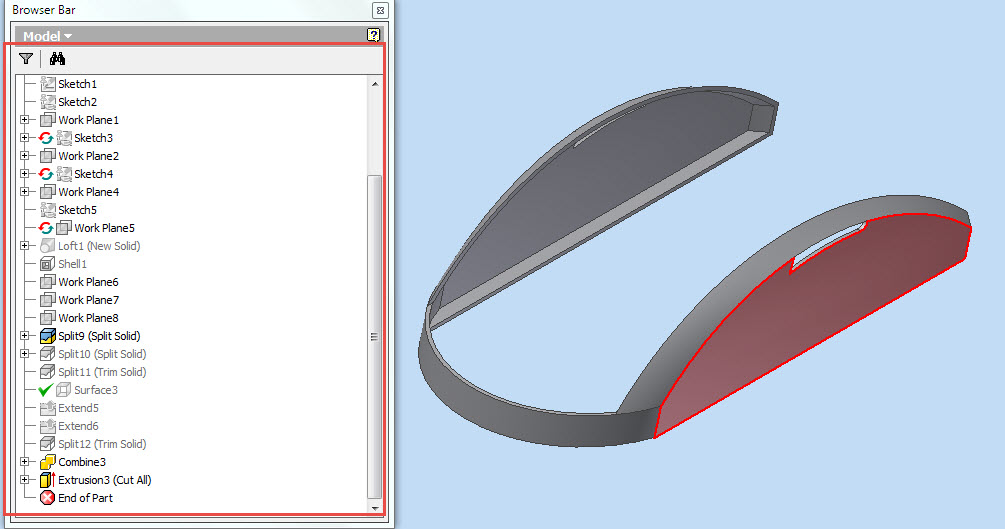
  Then the first component will be placed in the assembly and the next component will be created in the context of first part. Later some sketches will be created on different planes and a Loft feature will be used to form a sold. Then a Shell feature will be applied to hollow the part. Some user defined work planes will be created to be used as trimming and splitting tool. At this stage we will save a copy of  the current part using Make Part command. This section of the tutorial displays the application of Split tool in a very professional manner . Later some Surfaces will also be created to be used as Trimming tool in the aforesaid feature. In the end all the remaining bodies will be combined. Again some Extruded Cut feature will be applied to create holes for side buttons.

Second component of the assembly of computer mouse
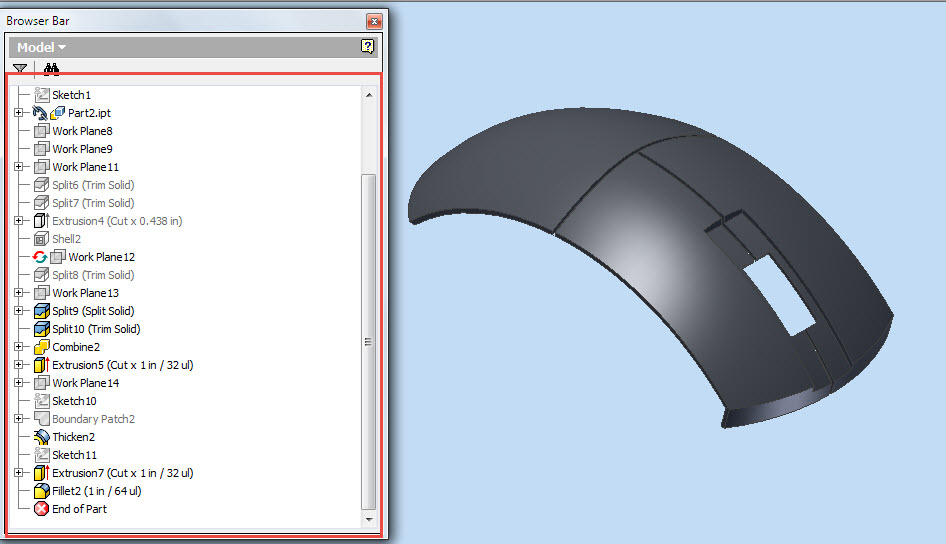
Next we will place the previously saved part in the assembly and modify it according to our design. Same type of Trim feature and other solid modeling tools will be applied to complete the model.
Third component of the assembly of computer mouse

The remaining components are quite common and I think there is no need to discuss them right now. Just watch everything in action, the video is available below.


download-Link 
Click the following link to get the model file: -http://bit.ly/2n2CjMJ